



How to Trade · Advanced · 8 min read
Useful TradingView Plugins: Which Ones Actually Improve Your Analysis
What useful TradingView plugins do and the gaps they fill
Useful TradingView plugins are Pine Script indicators, strategies and library scripts that extend the platform's charting layer with custom overlays, alerts and automated signal logic. They cover gaps the native toolkit leaves open, which typically include:
- multi-timeframe confluence
- session-based volume profiles
- order-block mapping
- risk-adjusted position sizing
- alert routing to webhooks
By running everything inside a single chart, you avoid switching between terminals to keep track of execution context.
The category splits cleanly into free community scripts, invite-only paid scripts and private indicators you write for yourself. Each tier solves a different problem: the free library covers most mainstream technical analysis add-ons, paid scripts bundle proprietary logic with vendor support, and custom code encodes your own edge. Picking the right tier depends on how often you trade, how specific your setup is, and how much lag you can tolerate between signal and execution.
If you still need a broker, our guide to the best forex brokers compares the regulated options side by side.
Popular free plugins: what they do and how to find them
TradingView's public library hosts tens of thousands of free TradingView extensions written in Pine Script. You open the Indicators, Metrics & Strategies dialog on any chart, filter by Community Scripts, and sort by Editors' Picks, Top or Trending. The dialog shows the author, publish date, likes and a short description; one click adds the script to the active chart.
The free tier concentrates in a handful of recurring categories that cover most retail workflows:
- Trend and momentum: SuperTrend variants, QQE Mod, Hull Suite, LuxAlgo's open-source trend tools.
- Volume analysis: anchored VWAP, session volume profile, delta approximations from candle shape.
- Market structure: swing high and low mapping, break-of-structure markers, fair value gap plotters.
- Risk and sizing: ATR-based stop and target overlays, position-size calculators keyed to account equity.
- Alert utilities: multi-condition alert consolidators, webhook payload formatters for broker bridges.
Quality inside each category varies considerably, so a script with thousands of likes and recent updates tends to be a safer starting point than one that looks polished yet has sat untouched for years, and the "Open source" badge lets you read the logic before trusting it with alerts.
Paid plugins versus free: when the cost makes sense
Paid invite-only scripts tend to justify their price in three narrow scenarios:
- Proprietary logic that the free library has not yet reproduced.
- Active vendor maintenance against TradingView platform changes.
- Bundled support channels that respond when a strategy breaks mid-session.
Most retail workflows will function perfectly well without any of that, since the free tier already covers volume profile, order flow approximations, Smart Money Concepts mapping and session tools at a quality level competitive with closed-source releases.
To make the decision concrete, check three things against your own trading log:
- Whether the paid script generates signals your current stack genuinely misses, with no duplication.
- Whether the vendor publishes an audit of logic changes that go beyond cosmetic releases.
- Whether your trade frequency recovers the subscription cost without inflating your position size to compensate.
A $40 monthly script should deliver a measurable, documented edge over the free alternative; if it does not, the subscription is really paying for interface polish. Treating invite-only scripts as a research expense, with no expectation of a shortcut, keeps the decision grounded in evidence rather than hope.
Step-by-step: installing and configuring a plugin on your chart
Installation on TradingView is identical for free and paid scripts once access is granted, so the workflow generalises:
- Open the chart for the symbol and timeframe you intend to trade.
- Click Indicators in the top toolbar (shortcut /).
- Search by script name or author; switch to the Community Scripts or Invite-only scripts tab as needed.
- Click the script to attach it; it loads on the active pane or a sub-pane depending on its output.
- Hover the indicator name on the chart and click the settings gear to open Inputs.
- Adjust period lengths, source series, session hours and alert conditions to match your setup.
- Open the Style tab to change line thickness, colour and visibility per plot.
- Save the configured chart as a template (Templates, Save Indicator Template) so you reapply it in one click on other symbols.
For alert routing, right-click the indicator plot, choose Add alert on..., and in the alert dialog pick the plot condition, the frequency (Once Per Bar Close is the lag-safe default) and the notification channel. If you route to a broker bridge, paste the webhook URL and the JSON payload the bridge expects into the Message field.
Compatibility: which plugins work with your chart type and timeframe
Most scripts render on every chart type (candles, bars, line, Heikin-Ashi, Renko, Range), though behaviour tends to diverge once the chart stops being time-based. A momentum oscillator on Renko reads bricks rather than bars, so its lookback no longer maps cleanly to clock time. Volume profile scripts anchored to a session will break on tick, Range and Point & Figure charts, because the session concept itself dissolves on those formats.
| Script category | Candles / Bars | Heikin-Ashi | Renko / Range | Non-standard (Kagi, P&F) |
|---|---|---|---|---|
| Moving averages, oscillators | Reliable | Smoothed, prone to lag | Signal timing changes | Avoid |
| Session volume profile, VWAP | Reliable | Reliable | Unreliable | Avoid |
| Market structure, order blocks | Reliable | Repaints on HA close | Interpretation shifts | Avoid |
| ATR stops and position sizing | Reliable | Inflated by HA smoothing | Based on brick size | Avoid |
| Strategy backtests | Reliable | Backtest results invalid | Backtest results invalid | Backtest results invalid |
Timeframe sensitivity is the other axis. Scripts tuned to daily swings produce false crosses on 1-minute charts, and intraday session tools break when you load them on weeklies. The script's description usually names the intended timeframe band; respect it before adjusting inputs.
Testing plugins with backtesting and paper trading
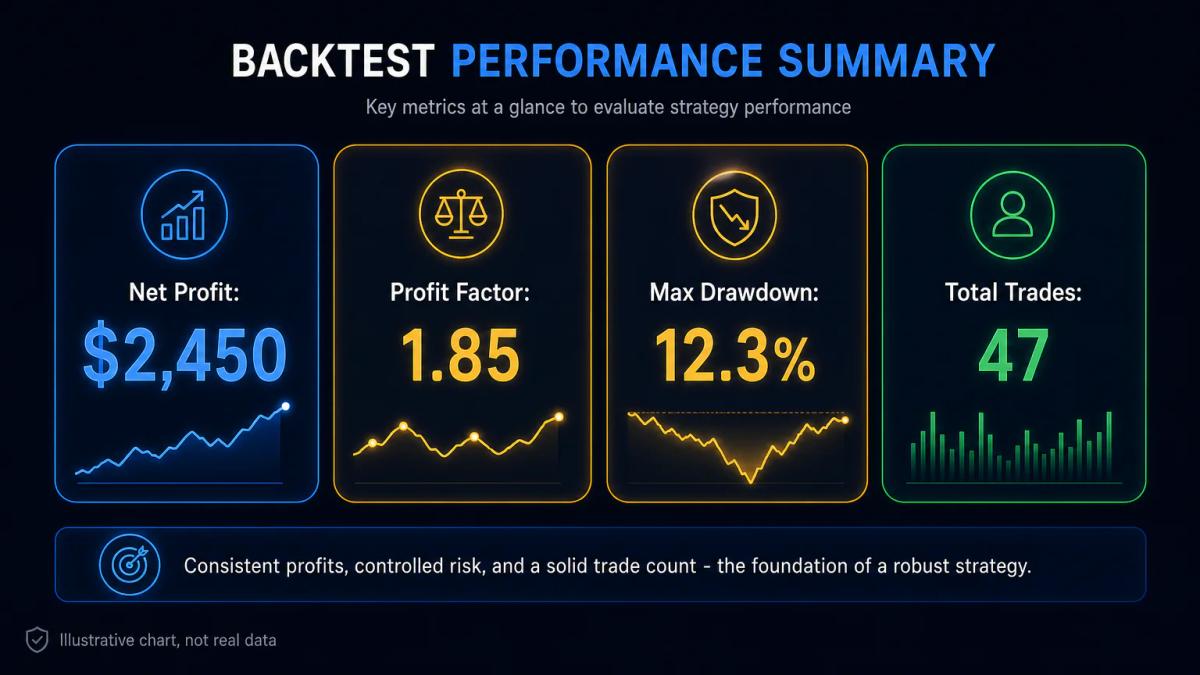
Before attaching any script to live orders, run it through TradingView's Strategy Tester on the exact symbol, timeframe and session you plan to trade. Convert indicators to strategies if the author has not published a strategy version; a few lines of strategy.entry and strategy.exit wrap most signal logic. Read the Performance Summary for:
- net profit
- profit factor
- max drawdown
- the number of trades
On fewer than 30 trades, a profit factor above 1 is likely to be statistical noise rather than evidence of a durable edge, so sample size should be weighed as heavily as the headline numbers.
Two defects recur in community scripts and tend to surface only during testing:
- Repainting: the script changes a past signal when a later bar prints, which inflates backtest results.
- Lookahead bias: the script references future data via request.security with the wrong parameters, giving the strategy information it would not have in real time.
Both defects inflate equity curves during testing and then collapse under live conditions, so flagging them before capital is at risk saves considerable rework.
Once the backtest looks clean, running the script in paper trading for 20 to 50 fills under current market conditions tends to reveal issues the historical data could not. Common findings during this phase include:
- execution lag between the alert firing and the broker fill
- false signals during illiquid sessions
- alert duplication when the same condition triggers across multiple bars
Community ratings and reviews: how to spot reliable plugins
The public script page carries the signals you need:
- like count
- boost count
- publish date
- update history
- open-source flag
- a comment thread
Treat the comment thread as the primary filter, since likes are mostly a measure of popularity whereas comments tend to surface bugs and quirks that only appear in practice. A script with recent comments reporting repaints or broken alerts is one to skip, regardless of how many likes it accumulated three years ago.
Four heuristics narrow the field without consuming an afternoon:
- Update cadence: a changelog with releases in the last twelve months signals an active author.
- Author track record: check their other scripts; a single viral release and silence afterwards is a warning.
- Open source over protected: readable Pine lets you confirm the logic matches the description.
- Specificity: scripts that claim to work on every asset and every timeframe tend to perform modestly across all of them.
Building your own: when to write a custom plugin in Pine Script
Writing your own Pine Script becomes a reasonable answer once three conditions align:
- The signal logic you trade is specific enough that no public script replicates it faithfully.
- The public alternatives you have tested either repaint or introduce unacceptable lag.
- You need precise control over the alert payload for a broker bridge.
Pine v5 and v6 cover most retail needs, with features that include:
- multi-timeframe requests
- arrays
- user-defined types
- matrices
- request.seed for alternative data
Imagine that you trade a mean-reversion setup that fires only when the 1-hour RSI is below 30, the daily trend filter is pointing up, and price touches a 20-period lower Bollinger Band. Should no single public script bundle those three conditions with your exact thresholds, writing the setup in Pine would take roughly forty lines and give you a strategy version for backtesting, an alert condition for execution, and full control over the webhook JSON your broker bridge consumes.
The real cost is calendar time: a working strategy in Pine typically takes a weekend if you already code and closer to a month if you are learning as you go. In return you get a script that cannot drift under you because nobody else maintains it, and whose logic you can audit line by line against your own trading log.
To see these conditions applied by a regulated broker, read our Fusion Markets review.
Frequently Asked Questions
Are TradingView plugins free to use?
Most community scripts in the public library are free and attach to your chart with one click. A separate invite-only tier is paid, usually via monthly subscription set by the author, and requires the author to grant access before you can load the script.
Can I use TradingView plugins on MT4 or MT5?
No. Pine Script runs only inside TradingView. To replicate a TradingView indicator on MT4 or MT5 you need to rewrite the logic in MQL4 or MQL5, or use a webhook bridge that forwards TradingView alerts to your MetaTrader account for execution.
How do I know if a TradingView plugin is safe to install?
Pine Script runs sandboxed inside TradingView, so a script cannot touch your device or your broker account on its own. Safety concerns are about signal quality and alert routing: prefer open-source scripts, read the code or the comment thread, and verify where any webhook alert actually sends its payload.
What is the difference between an indicator and a strategy plugin on TradingView?
An indicator plots values or signals on the chart and can fire alerts; a strategy runs simulated entries and exits against historical data and reports performance in the Strategy Tester. Strategies let you backtest; indicators do not, unless you convert them to strategy code.
Do TradingView plugins work on mobile charts?
Yes. Any indicator or strategy you have added on desktop renders on the iOS and Android apps, and alerts fire on both. Script configuration is easier on desktop because of screen real estate, but once configured the chart layout and alerts sync across devices.
About the authors


Put this into practice
Related articles

What Are Trading Signals: How They Work and When to Use Them
A practical guide to trading signals: how indicators generate them, manual versus automated types, costs, regulation, and how to combine them with sound risk management.

AI Agents for Stock Trading: How They Work and What to Expect
A practical look at AI agents for stock trading: how multi-agent LLM frameworks reason, what they cost to run, and where they break in live markets.

Best EMA for Finding Trends in Day Trading: 9, 21 and 50 Explained
How the 9, 21 and 50 EMAs work together to identify intraday trends, plus the 5, 8, 13 setup, stop placement, volume filters and common pitfalls.
0 comments